Browse cards and sets
Look through every Pokémon, set and illustrator, search for any card, and see what you can do without an account.
Holo Folder isn't only for the cards you own. You can look through every Pokémon and every set in our catalogue, check a set off card by card, and find all the cards an illustrator has drawn. Most of this works without an account, too.
Browse sets and Pokémon
Tap Browse in the dock. Two buttons at the top switch between Pokémon and Sets, and Browse goes back to whichever you used last.
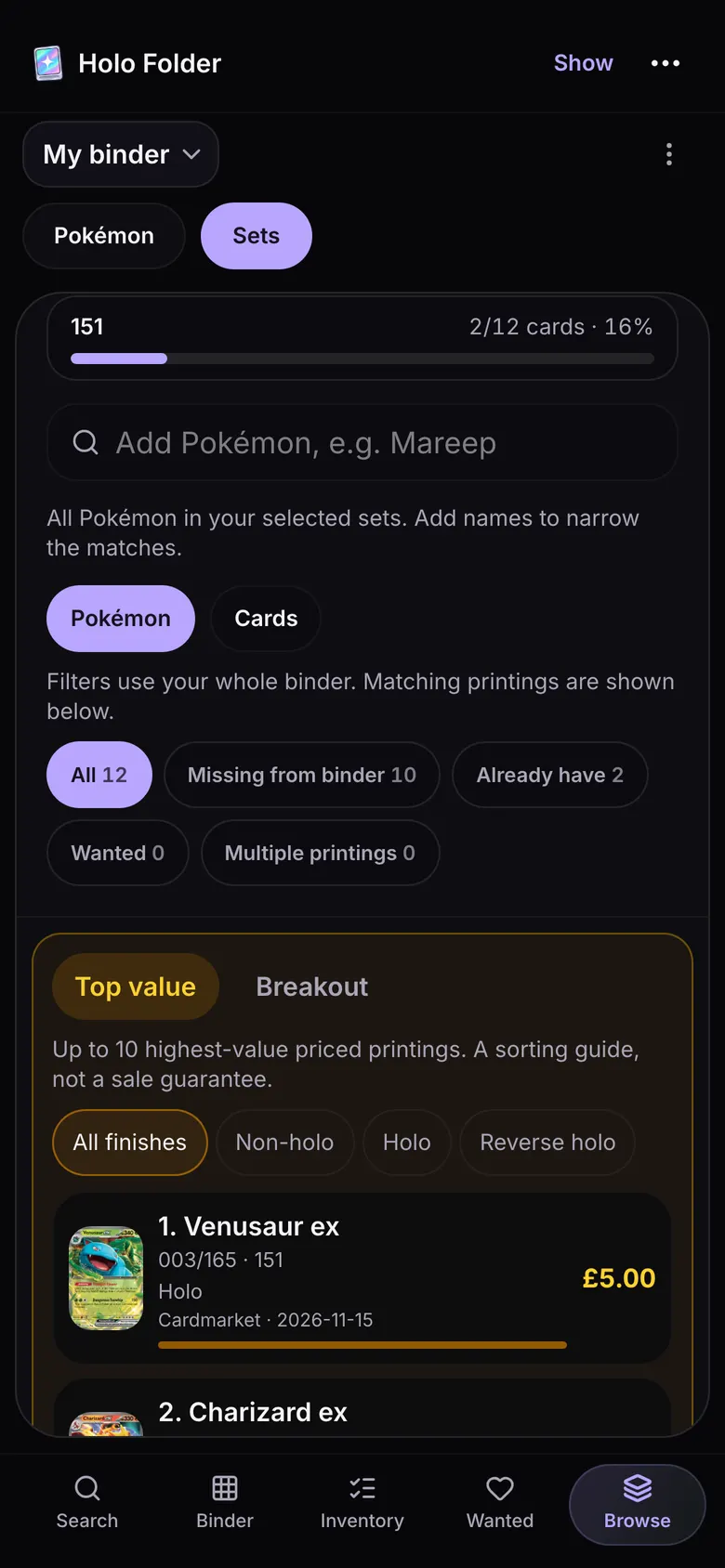
Sets lists every set, grouped by series. Find one with the search box (a name, set code or year all work) or narrow the list by series, then tap a set to open it. You'll see how much of it you've completed and its checklist. The checklist can show the set's Pokémon or every one of its Cards, and you can filter it by name, number or rarity. Cards you have in your binder are marked Owned, and cards on your want list are marked Wanted.
You can open more than one set at a time by searching for another one, which helps when you're comparing a main set with its subsets.
Pokémon is a grid of every Pokémon. Search by name or National Dex number and tap one to see all of its cards. From any card you can open its details, choose a finish, add it to your binder or put it on your want list. A Pokémon's cards look the same as Search and adding a card, with each card's low (L) and market (M) price, and Filters · Sort narrows them by set, rarity or illustrator and sorts them by price or set date.
The National Dex list
For a quick look down the whole National Dex, open the More menu at the top of the screen and choose National Dex. It lists every Pokémon in Dex order with whether you own it, and the search box finds a Pokémon by name, card, set or Dex number.
Search for anything
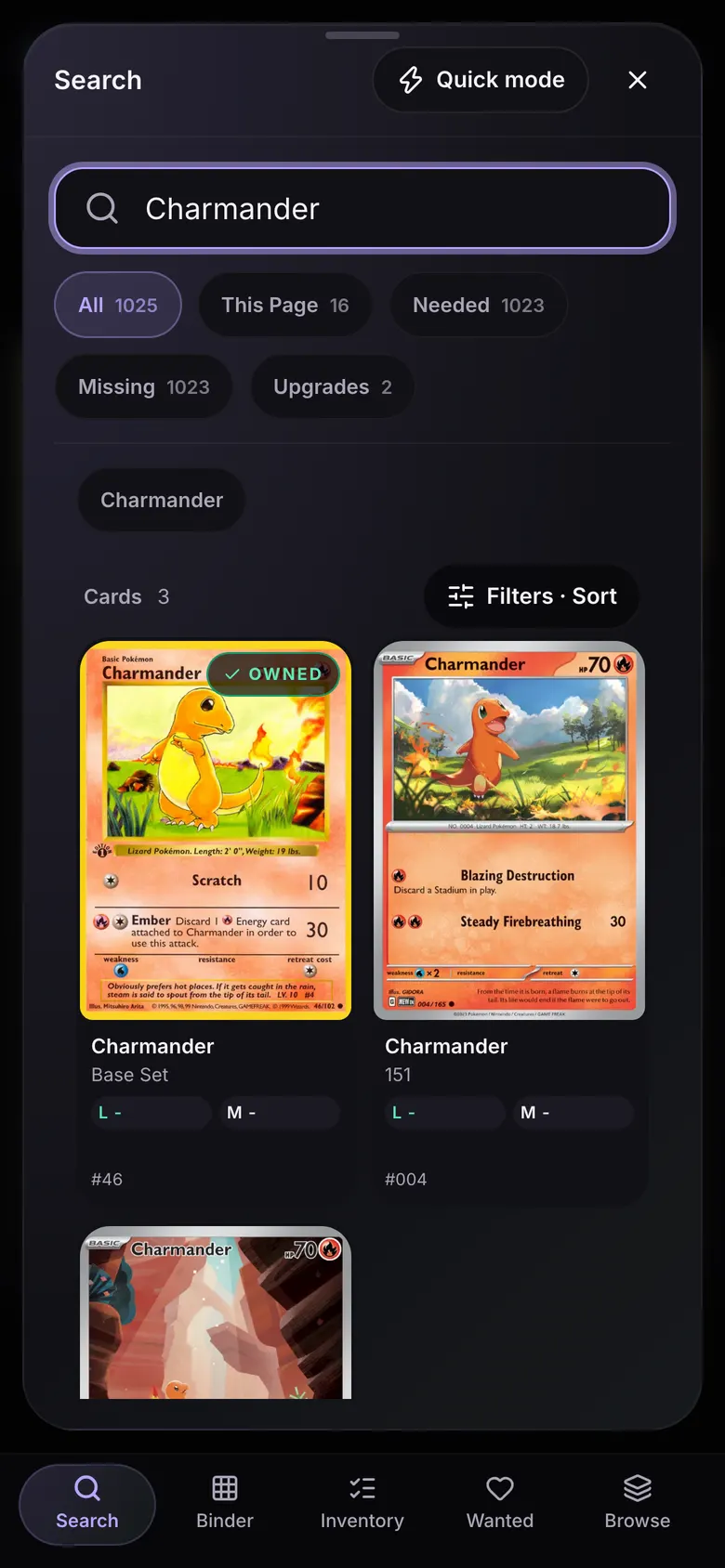
Tap Search in the dock to search everything at once. Type a Pokémon, a card name, a set, an illustrator or a Dex number, and every matching card is shown first in one grid. You can combine a Pokémon and a set, such as "Abra 151", to find one card quickly.
Above the cards, the Pokémon, sets and illustrators that match your search appear as chips:
- Tapping a chip searches again for just that Pokémon, set or illustrator and keeps only its cards. Tap it again to see every result.
- With a chip chosen, the link under the chips opens all that Pokémon's cards, the set in Sets, or every card the illustrator has drawn.
- Tapping a card opens its details.
- The Pokémon list under the cards takes you to a Pokémon's pocket in your binder, or shows all its cards if the binder has no pocket for it.
The cards look and sort the same as when you add a card to your binder. Each one shows its low (L) and market (M) price and whether you own it or want it. Filters · Sort narrows them to one set, rarity, illustrator or Pokémon and sorts them by best match, price or set date. An illustrator's cards and a Pokémon's cards have the same Filters · Sort.
When the search box is empty, your recent searches are listed so you can jump back to them. Pressing and holding Search opens Quick mode instead, a faster one-handed search that's handy at card shows. See Show mode.
Offline, search only finds cards already saved on your device, and Sets shows the set details you've opened before. See Install and use offline.
Without an account
You can try Holo Folder before signing up. Without an account you can browse the National Dex and every set, search for any card, open card details and see prices, and use Show mode to check what a card is worth.
Anything that would change a collection, such as adding a card or putting one on a want list, asks you to create an account first. Nothing is saved on your device until you do. When you're ready, tap Join now at the top, then follow Make your first binder.
Related
- Add your cards once you've found what you own.
- Find a card by pointing your camera at it in Scan cards.
- See what a card is worth in Prices.