History and settings
See every change to your collection, undo one you didn't mean, and find your way around Settings.
Holo Folder keeps a record of every change made to your collection, so if a card goes missing or a page looks wrong you can see exactly what happened and, in most cases, put it back.
See your history
Tap your binder's name at the top of the screen to open Binders, then tap Activity. You can also open it from the Activity button on a card's details, which shows only the changes to that card.
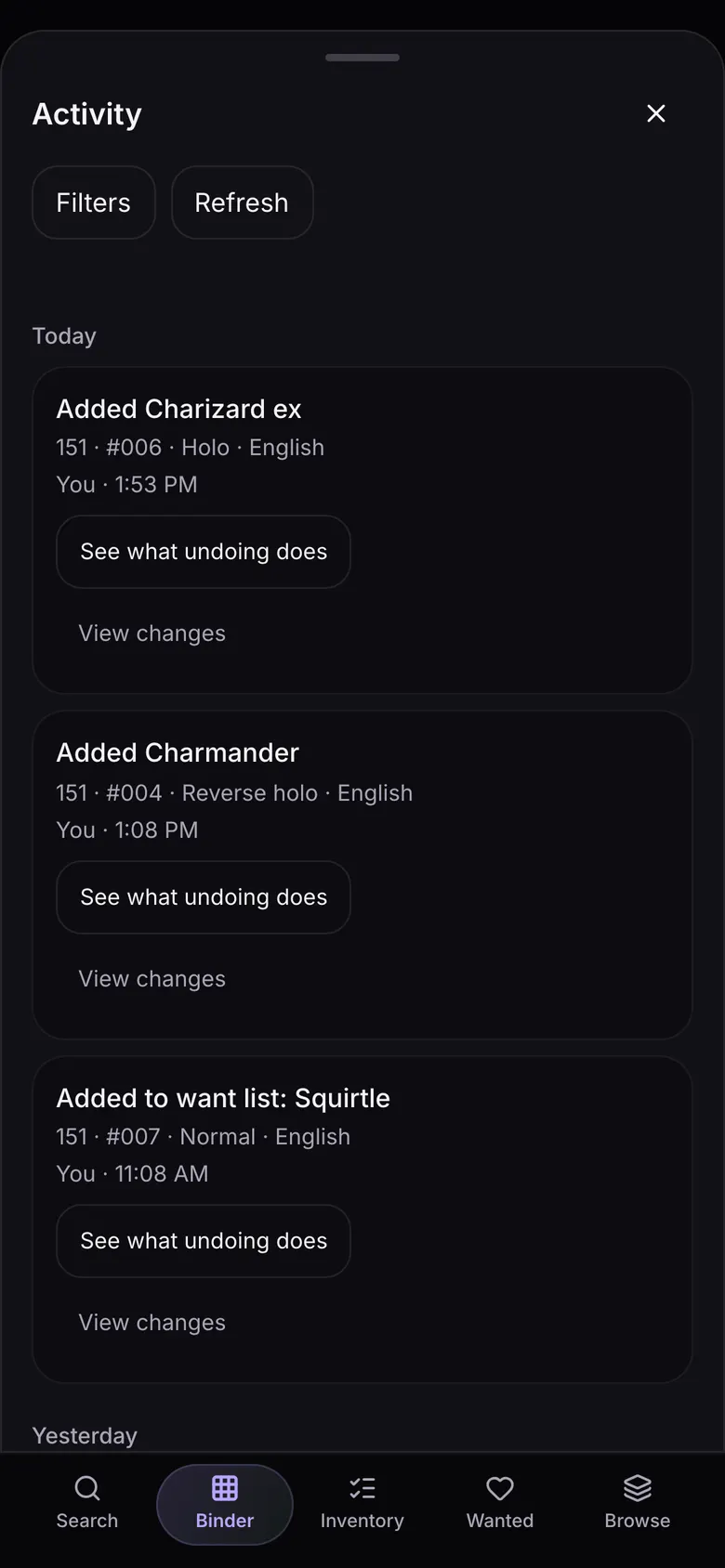
Changes are grouped by day, newest first. Each one says what happened, such as "Removed a card", who did it and when. Tap View changes to see the details, and Older page at the bottom to go further back.
To narrow things down, tap Filters. You can pick a collection, a person (handy if you collect with a partner), a date range, and the kind of change: Cards and wanted lists, Collections and settings or Older recorded changes. Tap Apply filters to see the results, and Refresh to load anything new.
Undo a change
- Find the change in Activity.
- Tap See what undoing does. Holo Folder shows you exactly what will change before anything happens.
- If it looks right, tap Undo this change, or Not now to leave it.
If undoing would bring back cards that have since been removed, you can choose which binder they go back into. Once it's done you'll see "Undone. Your collection is up to date."
Some changes say "This change can't be undone from here", and if the preview says "This change can no longer be undone", it can't be reversed any more. You need to be online to undo, with your latest edits already saved. If you've made changes offline, Activity shows how many are waiting to sync and Undo becomes available once they're saved.
Settings
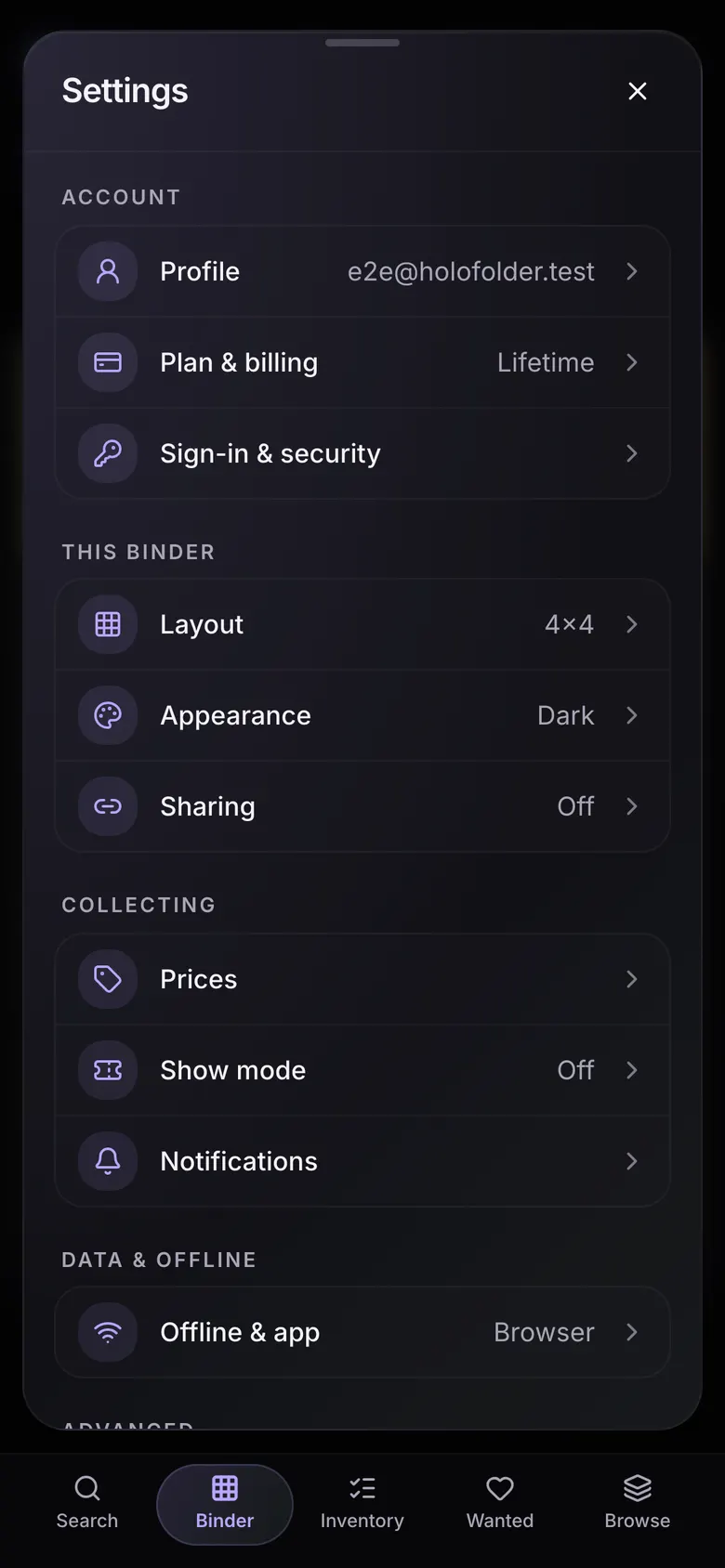
Open More (the three dots at the top right), then Settings. Tap a row to open it.
Account
- Profile: your Name, used in notifications to your partner, and your Username, used in named share links.
- Plan & billing: your plan.
- Sign-in & security: tap Add a passkey so you can use Sign in with a passkey next time instead of waiting for an email, or remove one you no longer use.
This binder
- Layout: how many rows and columns each page has, plus a link to Binder Studio.
- Appearance: Page colours for the whole binder or a run of pages, Dark mode, and the shine effects (Binder slot glare, Motion glint and Card finish glints). Slot positions shows A1, B4 and so on in each pocket, on this device only.
- Sharing: your read-only link and binder address. See Share a binder.
Collecting
- Prices: under Region & pricing, choose your Region, the Currency prices are shown in and the Card language new cards default to. Each starts on Automatic, based on your device. Refresh prices in background rechecks prices for every card in the binder. More in Prices.
- Show mode: turn Show mode on or off, and set the Deal checker thresholds for Great deal, Fair price and Walk away. Reset puts them back to the defaults.
- Notifications: alerts for partner activity and finished price checks, set up per device.
Data & offline
- Offline & app: install Holo Folder, save whole sets for offline use, and download this binder with Prepare this binder. See Install and use offline.
- Backup: Download backup saves this binder's owned cards, wanted cards and settings, including any edits not yet synced, as a file.
About
- Credits & attributions lists where our card data, images and set symbols come from. Card images are © The Pokémon Company, Nintendo, Creatures and GAME FREAK.
Sign out
Tap More, then Sign out. The same menu has a quick Dark mode or Light mode switch too.
Related
- Troubleshooting if changes aren't syncing.
- More than one binder for renaming, reordering and deleting binders.
Collect with a partner
Share your whole collection with one other person so you can both add cards, tick off your want list and see each other's changes.
Troubleshooting
Plain fixes for missing card images, cards you can't find, changes that haven't synced, signing in on a new phone and missing prices.