
Your want list
Keep track of the exact cards you're hunting for, see where each one goes and tick them off when you find them.
Your want list is every card you're still looking for, down to the set, language and finish. Each wanted card belongs to a pocket in one of your binders, so when you finally find it, Holo Folder already knows where it goes.
Add a card to your want list
You add a want from a card's details, which you can open from almost anywhere: a search result, a set checklist in Browse, or All cards on a pocket in your binder.
- Open the card you're after and pick the finish you want, if it comes in more than one.
- Tap Want, the heart button (Add to want list on some screens). You'll see "Added to your want list" when it's saved, and the heart fills in to read Wanted.
The want goes on a pocket in the binder you have open. If you opened the card from a pocket, it goes on that pocket. Otherwise Holo Folder uses the pocket kept for that exact card, or failing that, the pocket for that Pokémon. If the open binder has no pocket for the card, the button is greyed out and Holo Folder says so. Open a binder that has a pocket for it, then try again.
A pocket that already holds a card can still have a want. This is how you note an upgrade, such as a holo you'd like in place of the reverse holo you have. In the binder, that pocket's details show it under Wanted upgrade, and an empty pocket's details show Wanted here.
See your want list
Tap Wanted in the dock. The list shows how many cards you want and, when we have reliable prices for them, roughly what it would cost to complete. Cards without a reliable price are counted separately rather than guessed. Each card shows its set and number, its finish, its price (or No price) and which binder, page and pocket it's for. Wants for a pocket that already holds a card are tagged Upgrade.
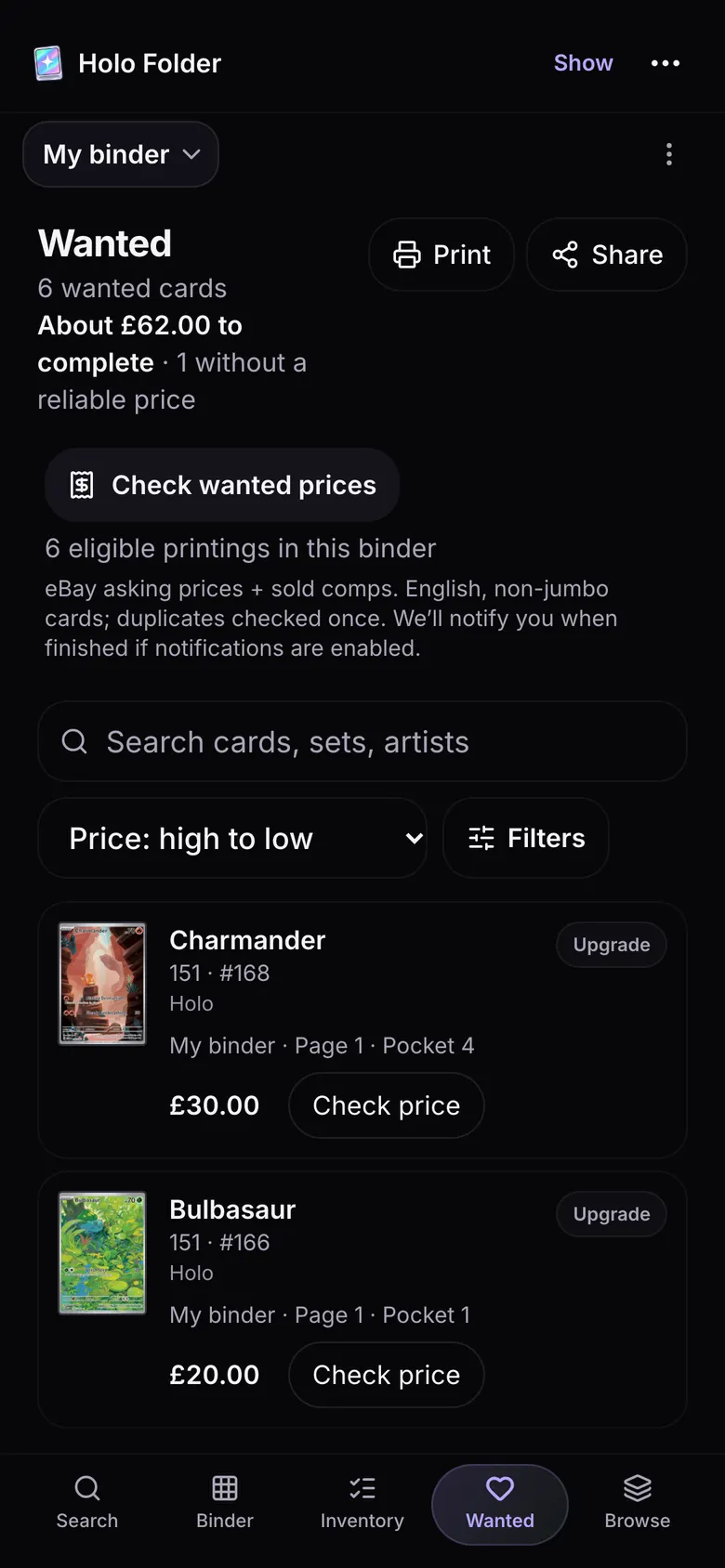
To find a card quickly, use Search want list, which matches cards, sets and artists. The sort menu offers orders such as Price: high to low, Cheapest set to finish first, Recently added, Rising prices first and Group by Pokémon, and the filters button narrows the list by price, set, finish and language. Holo Folder remembers your sort and filters on this device.
Print gives you a printable sheet of your wanted cards. Share, part of Holo Folder Premium, sends the list as it's currently searched, filtered and sorted. On a phone it opens your share sheet, so you can send it in a message, and elsewhere it copies the list for you to paste.
Check the price of a card that isn't on your list
Search your want list, and if the card you're after isn't there, tap Check price of any card. When your search matches some cards but not the one you want, the button reads Not here? Check price of any card and sits under the results. If your want list is empty, tap Check a card price. Each one opens Price check with your search already typed, so you can see a card's market price without adding it to anything. See Prices for what the numbers mean.
Tick off a card you've found
When a wanted card turns up, add it to your binder. You can do this straight from the want list: open the Choose a copy menu on that card and pick New copy, or one of your spare copies (listed as Unassigned copy), then tap Add to collection. It goes into the pocket the want belongs to. You can also go to the pocket in your binder and add the card there in the usual way. See Add your cards.
Remove a card from your want list
Tap Check price on the card in your want list to open its details, then tap Remove from want list, or the filled Wanted heart in All cards. You can do the same from the card's details wherever you open it.
Related
- At a card show, Show mode turns your want list into a quick Hunting list. See Show mode.
- Find out where prices come from, and why some cards have none, in Prices.
- Browse sets and Pokémon to find cards to want in Browse cards and sets.